⇧⌘↩
Focus Mode
Distraction-free writing in Focus Mode.
The sidebar, toolbar and panels disappear, leaving only the page you’re writing. Press Esc and every chapter is back where you left it.
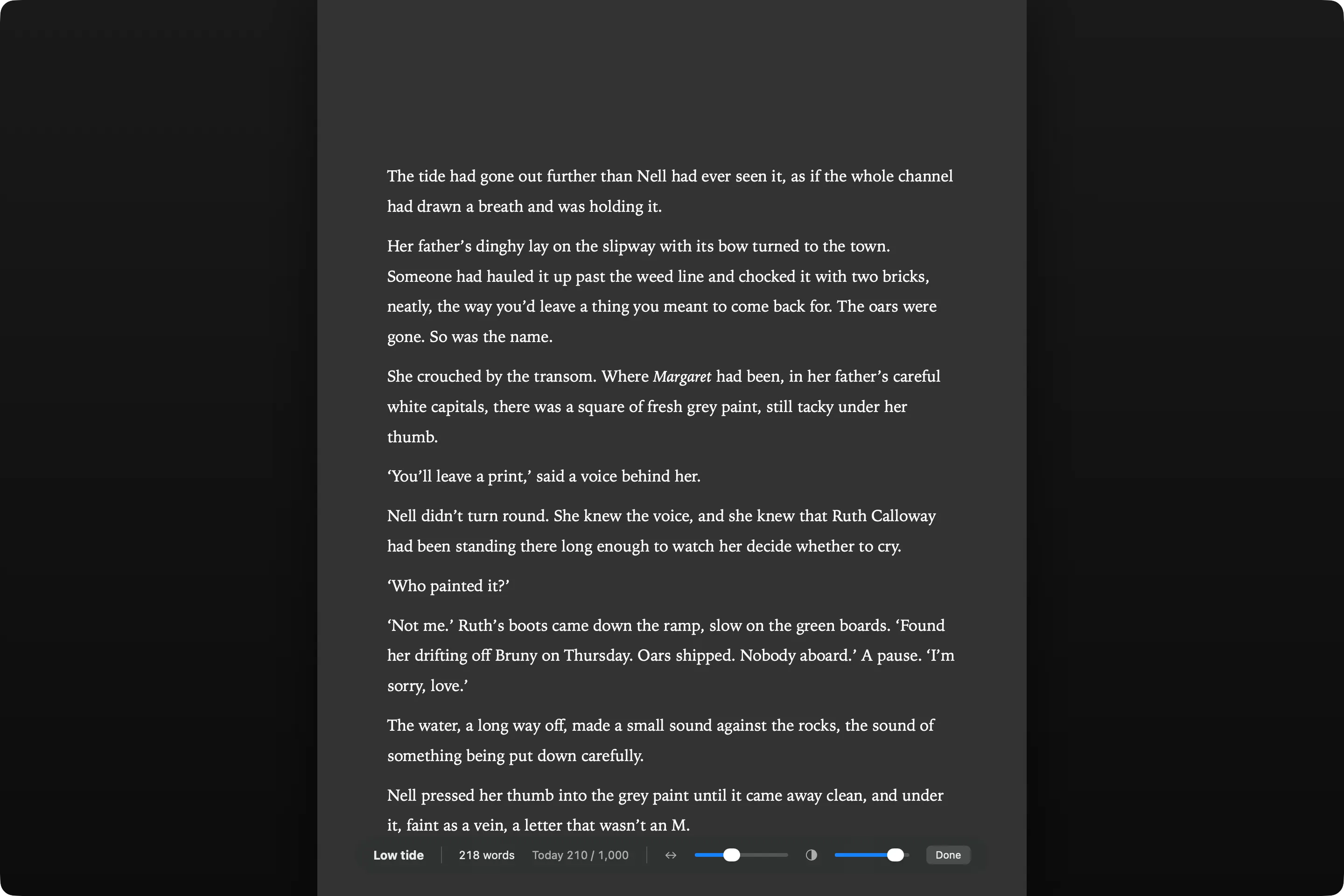
The rest of your book is a keystroke away.
Most distraction-free writing apps are a blank page and nothing more. That works until you need to check what happened in chapter three. In Wryte, Focus Mode is part of your project: press Esc to look something up in your notes or research, then ⇧⌘↩ to go back to the page.
- Typewriter scrolling keeps the line you’re writing in the middle of the screen, so your eyes stay in one place.
- The controls appear only when you move the pointer: the scene’s word count, how far you are toward today’s goal, a slider to make the page wider or narrower, and another to set how dark the backdrop is.
- Full screen and dark are optional. In Settings, choose whether Focus Mode fills the screen, and whether it stays dark or matches your Mac.
- Leave whenever you like. Everything you wrote is already saved.
Prompts for an empty page.
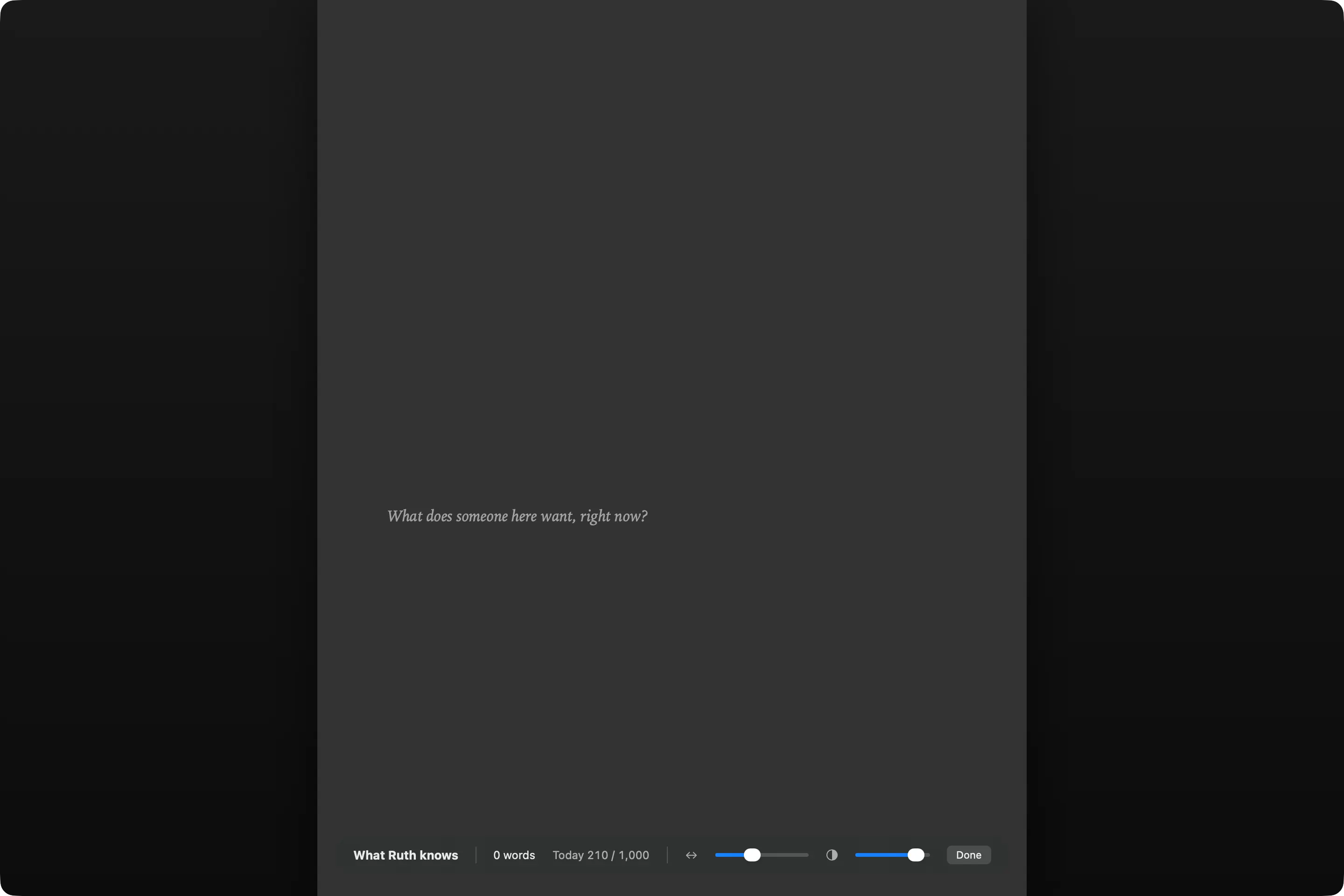
An empty page shows one faint line to help you start, and it disappears when you type. Each page keeps the same prompt, so it doesn’t change while you’re deciding how to begin. Fiction and non-fiction projects each add their own to the general ones. Here’s the full list:
For any writing
- Begin anywhere. The middle is a fine place to start.
- A first draft only has to exist.
- Write it badly first. Fix it later.
- Tell it the way you’d tell a friend.
For fiction
- What does someone here want, right now?
- Start with something you can see, hear or smell.
- Who’s in the room, and who wishes they weren’t?
- Start in the middle of something happening.
- Give someone a secret. Let them nearly tell it.
For non-fiction
- What’s the one thing this part has to say?
- Start with the question this section answers.
- Who is this for, and what do they need first?
- Put the example first. The explanation can follow.
Rather start from nothing at all? Turn prompts off in Settings ▸ Writing.
⌘'
Split Editor
Two documents side by side.
Sometimes you need a character sketch or a source in view while you write. Outside Focus Mode, the Split Editor puts a second document beside the first, or above it with ⌥⌘'. Your daily goal counts what you write either way.